
Gemini exporter
Gemini Exporter for Full or Selected Conversations
Save a loaded Gemini conversation as a readable local file. Choose the full chat, selected messages, or one answer, then export to PDF, Word, Markdown, JSON, image, or Notion-ready Markdown.
- Gemini web app
- Full or selected messages
- Local export formats
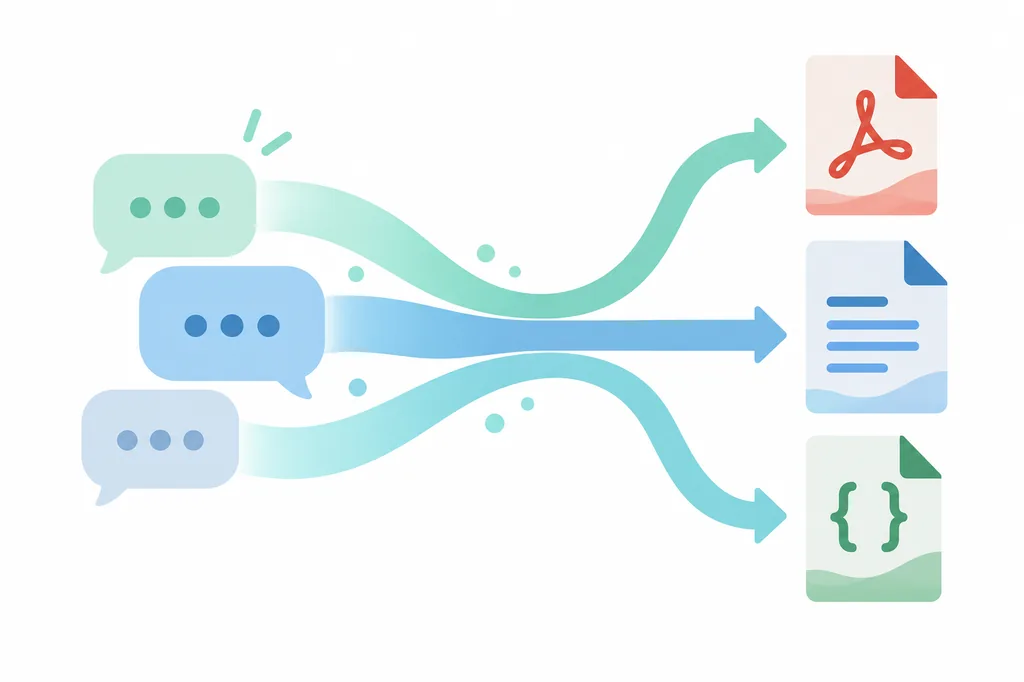
- PDFSharing, printing, and stable review copies
- Word / DOCXEditing a brief, lesson, or draft
- MarkdownNotes, version control, and clean text
- JSONStructured records and later processing
- ImageA quick visual reference or shareable answer
- NotionA page-ready research or project note
What it does
A Gemini exporter for the conversation you already have open
A Gemini exporter is useful when a browser tab is no longer a good working document. You may want to send a polished answer to a client, keep research notes with the original prompt, turn a code explanation into a draft, or save a long conversation before the context becomes difficult to find. SaveMyAIChat gives that task a clear scope and a practical output choice.
The workflow begins in the browser. The extension reads the content that the active Gemini page has loaded, lets you choose what to keep, and prepares the selected local file. That means you can export a complete conversation when context matters, or choose a smaller selection when the useful part is one answer, a set of messages, or a focused piece of code.
This Gemini exporter is a browser export control, not a second chat application and not a promise that every dynamic element will always copy perfectly. Let streaming finish, load the messages you need, and review the result when the source contains complex cards, images, formulas, or links. The clearer the source page is, the more useful the exported file will be.
Output formats
Choose the file that fits what you do next
The best Gemini export format depends on whether the conversation is going to be shared, edited, searched, processed, or saved as a visual reference.
| Format | Best for | What to check |
|---|---|---|
| Sharing, printing, and stable review copies | Check page breaks and formulas | |
| Word / DOCX | Editing a brief, lesson, or draft | Review headings and tables |
| Markdown | Notes, version control, and clean text | Keep links and code fences |
| JSON | Structured records and later processing | Confirm message order and metadata |
| Image | A quick visual reference or shareable answer | Use a focused scope |
| Notion | A page-ready research or project note | Authorize Notion only when needed |
How to export
Export a Gemini conversation in three steps
Keep the process close to the page where your conversation already lives. The extension is an export control, not a second chat application.
- 1
Open and finish loading the chat
Open Gemini in a supported Chromium browser and wait for the answer, images, tables, cards, or older messages you need to finish loading. If the page is still streaming, wait before exporting.
- 2
Choose what to keep
Open the SaveMyAIChat panel and choose Full conversation, Selected messages, or Latest answer. A smaller scope is often better when you only need a decision, code sample, or final draft.
- 3
Choose the output format
Select PDF, Word, Markdown, JSON, image, or Notion-ready Markdown. Start the export, wait for the browser to finish, and open the file before sharing or archiving it.
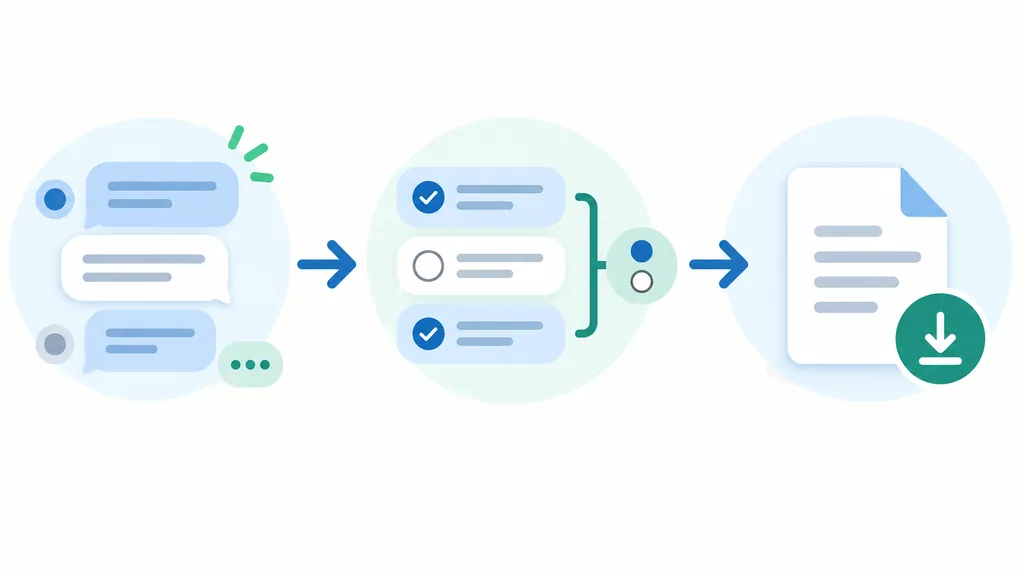
- 1Full conversation
- 2Selected messages
- 3Latest answer
Export scope
Full conversation, selected messages, or one answer
A good Gemini exporter should not force every use case into a full transcript. Choose the smallest useful scope so the resulting file stays focused and easier to review.
Full conversation
Keep the prompt context, the response history, and the final answer together for research notes, project history, or later review.
Selected messages
Save only the useful portion of a long chat, such as a requirements exchange, troubleshooting thread, or a set of code blocks.
Latest answer
Export one focused response when you need a conclusion, checklist, explanation, or short draft without the entire prompt history.
Formatting
What can stay readable in a Gemini export
Gemini conversations can mix short prompts with long answers, headings, numbered steps, code, tables, links, images, and dynamic response cards. SaveMyAIChat treats those elements as content rather than flattening every answer into a single block of text. That makes a PDF easier to review, a Word file easier to edit, and a Markdown or JSON file easier to reuse.
The source page still controls what is available. If an image, citation, formula, card, or streamed block has not finished loading, the exporter cannot promise a perfect copy of an unavailable element. Wait for the source to settle, then check the output before sending it to someone who needs an exact record.
- Conversation title and platform context can travel with the export
- Headings, lists, links, code blocks, and tables remain easier to scan
- A smaller scope can make the final document clearer than a full transcript
Privacy boundary
The export workflow stays close to your browser
Local file formats are prepared in the browser from the active Gemini page. Account, subscription, and usage requests are separate product operations; they are not the same thing as sending a conversation to a remote conversion service. This boundary helps keep the core export task understandable: the page supplies the content, and the extension prepares the file you asked for.
The product should not be described as completely offline. Google sign-in, usage recording, subscription management, support, and other account operations can require network access. The practical promise is narrower and more useful: chat content and generated files stay in the browser export workflow unless a separate product feature clearly asks for another authorization.
- No Gemini API key is required for the browser export flow
- Google sign-in appears after the free guest allowance is used
- Review the Privacy Policy before enabling optional account features
Practical limits
When a Gemini export needs a second look
Exporting a loaded page is different from exporting a hidden conversation database. Older messages may need to be loaded by scrolling, an answer may still be streaming, and an interactive card may not expose every detail as ordinary page content. If something looks incomplete, return to Gemini, load the missing part, and try again with a smaller scope or a more structure-friendly format.
For a final client document, compare the file with the source conversation. Check the title, message order, code blocks, tables, citations, links, images, and any personal information that should not be shared. Keeping both a readable PDF or Word copy and a structured Markdown or JSON fallback can be useful for important research.
- Wait for streaming and dynamic content to finish
- Load older messages before choosing Full conversation
- Review the downloaded file before treating it as a final record
Gemini exporter FAQ
Questions people ask before exporting a Gemini chat
These answers separate the export decision from account, format, and page-loading expectations.
What does a Gemini exporter do?
A Gemini exporter turns the loaded conversation in your browser into a file you can read, edit, archive, share, or reuse. SaveMyAIChat supports the full conversation, selected messages, or the latest answer, so you can choose how much context to keep.
Can I export only one Gemini answer?
Yes. Choose Latest answer in the side panel when you only need the newest response. This is useful for sharing a conclusion, a code sample, or a short draft without the entire prompt history.
Can I export Gemini to PDF or Word?
Yes. PDF is a good fit for a review or printable copy, while Word or DOCX is a better starting point when you expect to edit the conversation. Review complex formulas or images before treating the file as final.
Does the exporter preserve code and tables?
It keeps readable headings, lists, links, code blocks, tables, and images that the active Gemini page has already exposed. Wait for streaming and dynamic cards to finish, then check the downloaded file.
Does Gemini content get uploaded for conversion?
Local file formats are prepared in the browser export workflow. Account, subscription, and usage requests are separate product operations. The product should not be described as completely offline because account and billing features still need network access.
Can I try the Gemini exporter without signing in?
Yes. You can start with the guest workflow and use the free successful-export allowance before Google sign-in is requested. When the allowance is used, the extension can show the existing account and pricing path.
Why is part of my Gemini conversation missing?
The exporter can only read content that the active page has loaded and exposed. Wait for a streamed answer, scroll to load older content, refresh the context, or export a smaller selection. Markdown or JSON can help diagnose what was available.
Continue exploring
Start with the workflow, then choose your plan
Use the homepage for the multi-platform overview, ChatGPT and Claude pages for comparison, or Pricing when you need account details.
Ready to export a Gemini conversation?
Add SaveMyAIChat to Chrome, open a Gemini chat, and try the format that fits what you need to do next.
Add to Chrome — Export FreeStart without an account. Google sign-in is requested after the free guest allowance.